📚 An Educator's Guide to Ally
The best teaching years rarely start on the first day of class. They start weeks earlier — in the quiet prep months when you're sketching a syllabus, gathering readings, and imagining how the term will unfold. Ally is built for exactly that kind of thinking-ahead work, and for the busy in-term days when a hundred small things compete for your attention.
This guide walks you through setting up Ally as an educator, from your very first workspace to the weekly rhythms that keep a semester on track. You wear a lot of hats — instructor, grader, mentor, colleague, and human being with a life outside school. Ally gives each of those hats a home, so nothing slips and you stay present where it matters: with your students.
💡 New to Ally? Everything below can be set up in an afternoon of prep, then quietly maintained in a few minutes a day.
🏗️ How Ally Is Organized
Before diving in, it helps to know the shape of Ally. Everything nests in a simple hierarchy:
Workspaces → Folders → Projects → Sections → Tasks → Sub-tasks
- A Workspace is your whole world in Ally (think: "Fall Semester" or your school).
- Folders group related projects (for example, all your courses, or all your admin work).
- Projects are the workhorses — one per class, one for grading, one for professional development.
- Sections divide a project into columns or bands (Resources, Lectures, Grading, etc.).
- Tasks and Sub-tasks are the actual to-dos, each with priorities, due dates, labels, and more.
You'll also live in a handful of views: Inbox (your catch-all), Today, Upcoming, Filters & Labels, and Reporting. And every project can be shown in three layouts — List, Board, or Calendar — switched anytime from the Display menu.
🎒 Setting Up a Workspace for the Hats You Wear
Start by creating one Workspace for the term and building Folders for your different roles. A folder structure that works well for most educators:
- Courses — a project for each class you teach.
- Grading — a dedicated pipeline for everything that needs marking.
- Admin — meetings, forms, reports, room bookings, committee work.
- Professional Development — conferences, certifications, reading, applications.
- Personal — because a sustainable teacher is a better teacher.
Inside the Courses folder, create one Project per class (for example, "Biology 101 — Section A"). If you teach the same course to multiple sections, give each its own project so due dates and student notes never get tangled.
🧭 Tip: Keep folder names short and role-based. When you glance at your sidebar mid-lesson, you want to find the right project in one second.
🧩 Structuring a Course Project with Sections
Within each course project, add Sections so the work sorts itself. A reliable set for a single class:
- Resources — readings, slide decks, links, lab materials.
- Lessons — one task per lesson or week.
- Assignments — what students will submit.
- Grading — marking tasks tied to each assignment.
- Office Hours & Support — follow-ups, student check-ins, accommodations.
- Admin — attendance, room logistics, announcements.
At the start of term, front-load the project: add every lesson, key date, and deadline you already know, each with a due date. Ten minutes of setup now saves you a scramble in week six.
🚀 Starting Fast with Education Templates
You don't have to build any of this from scratch. When you create a project, choose start from a template and pick one of the Education templates:
- Class Planning — structure a single course: lessons, resources, assignments, grading.
- Educator Planning — the wider view: your teaching load, admin, and prep across the term.
- Student Planning — hand to students, or use to model good habits.
- Student Project — a scaffold for group or capstone work.
- Language Learning — a study cadence for language courses.
Templates drop in ready-made sections and sample tasks you can rename and reshape. Once you've tuned a project to your liking, use Save as template so next semester starts in one click — your future self will thank you.
🎯 Recommended start: Use Educator Planning as your top-level term project, then Class Planning for each individual course.
🗓️ Lessons, Resources, and Assignments
Treat each lesson as a task in your Lessons section. Open the task and add a description covering objectives, activities, and materials — and lean on the Enhance with AI helper to turn a rough outline into a clean, complete lesson note in seconds.
For anything multi-step, break the lesson into sub-tasks (prepare slides, print handout, set up lab). Attach context in comments: links, notes, a reminder about what worked last year. Set a priority so the highest-impact prep rises to the top, and add a deadline when a lesson depends on materials being ready ahead of time.
For assignments, create a task in the Assignments section with the due date students see, then a matching task in Grading with your own turnaround deadline.
✅ Grading Pipelines with the Board Layout
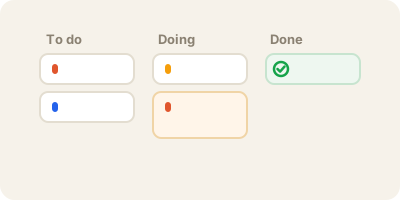
Grading is where a visual Board layout shines. Open your Grading project and switch the Display menu to Board. Make sections into pipeline columns:
- To Grade
- In Progress
- Needs Second Look
- Feedback Written
- Returned
Each submission (or each class set) becomes a card you drag across the board as you work. At a glance you see the whole marking backlog and what's stuck. Add a label like @grading to every card so you can pull a cross-class grading list anytime.
📌 Tip: Give each grading card a realistic deadline, not just a due date — deadlines signal the hard cutoff, keeping you honest about turnaround promises to students.
🔁 Recurring Tasks for Your Weekly Rhythm
Teaching runs on rhythms. Set these up once as recurring tasks and let them reappear on their own:
- Grade weekly quizzes — every Friday.
- Prep next week's lessons — every Sunday evening.
- Office hours — every Tuesday and Thursday.
- Update gradebook — every weekday.
- Send weekly class announcement — every Monday morning.
When you complete a recurring task, Ally automatically schedules the next occurrence, so your Today view always shows exactly what this day needs — no manual re-entry.
📆 Seeing Your Week with the Calendar Layout
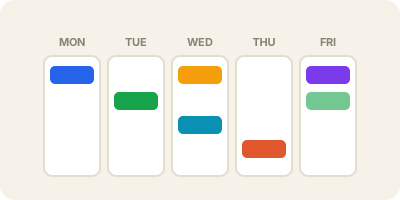
Switch any course project's Display menu to Calendar to see your lessons and deadlines laid out by day and week. This is the fastest way to spot a collision — two assignments due the same day, or a grading crunch landing on a week you're also at a conference.
Use Upcoming for the same bird's-eye view across all your projects at once. Scan it every Sunday to plan the week; scan Today every morning to run it.
🤝 Collaborating with Fellow Educators
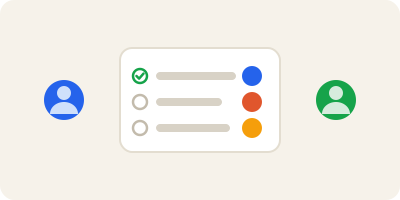
Teaching is a team sport. Any project can be shared with colleagues — a co-taught course, a committee, a curriculum working group.
- Share the project, then assign tasks to specific people so ownership is clear.
- Discuss and trade files in comments, keeping conversation attached to the work instead of scattered across email.
- For a department meeting, make a project with Sections for Agenda, Action Items, and Notes, and assign each action item to an owner before everyone leaves the room.
👥 Tip: For a shared syllabus or curriculum build, one person creates the project from Class Planning, shares it, and the team fills sections together — a single source of truth everyone can see.
🎤 Capturing Ideas Fast on a Busy Day
Great teaching ideas arrive at the worst moments — mid-hallway, mid-lecture, mid-commute. Ally is built to catch them before they vanish:
- + Add task anywhere to jot something into your Inbox to sort later.
- Quick Add — just press q — to capture without leaving what you're doing.
- Voice capture for hands-free moments (walking between rooms, driving home).
Everything lands in your Inbox. Once a week, triage it: send each item to the right project, add a due date, and clear the deck. Your Inbox is a landing pad, never a to-do list.
🏷️ Slicing Across Classes with Labels & Filters
Sections organize within a project. Labels cut across them — perfect for a teacher juggling several courses. Add labels by workflow, not by class:
@grading— anything that needs marking, in any course.@prep— lesson and material preparation.@email— replies and follow-ups you owe.@15min— quick wins for the gap between meetings.
Then open Filters & Labels to build saved views: "everything labeled @grading due this week," or "all @prep across all classes." When you have a spare fifteen minutes, pull up @15min and knock out three small things instead of doom-scrolling your whole list.
📊 Tracking Your Term with Reporting
Open Reporting to see how much you're actually completing over days and weeks. It's not about pressure — it's about honesty. If grading always spikes past your capacity in weeks 7 and 12, you'll see the pattern and can plan lighter prep around it next time. Use it to protect yourself from over-committing, not to guilt yourself.
💡 Tips from the Field
- Front-load the whole term on day one of prep — every known date, in with a due date.
- Let AI do the drafting. Use Enhance with AI for lesson descriptions and rubric notes, then edit to your voice.
- Deadlines vs. due dates: due dates for students, deadlines for your hard internal cutoffs.
- One Inbox rule: capture anywhere, but triage weekly so nothing rots.
- Board for pipelines, Calendar for time, List for detail — switch Display to fit the task, not the other way around.
- Save your best project as a template so next semester is a one-click setup.
- Protect personal projects in a folder of their own; a rested teacher grades faster.
🏁 Get Started in 5 Steps
- Create your Workspace and add folders for Courses, Grading, Admin, Professional Development, and Personal.
- Start a course project from the Class Planning template and one term project from Educator Planning.
- Front-load every lesson and deadline you already know, each with a due date.
- Set up your recurring rhythms — weekly grading, Sunday prep, office hours.
- Add your
@gradingand@preplabels, then build a saved filter so you can find any type of work across every class in one click.
That's it. Spend one focused afternoon here, and Ally will quietly carry the mental load all term — leaving you free to do the part no app can: teach.